Phantom is the most popular wallet on the Solana blockchain and has expanded to support Ethereum, Polygon, and other EVM chains. If you want to participate in Solana DeFi, NFTs, or Memecoin trading, Phantom is an essential tool. This article covers the complete installation and basic usage of Phantom wallet.
What Is Phantom Wallet?
Phantom is a non-custodial multi-chain crypto wallet originally designed for the Solana ecosystem. It has since expanded to support multiple blockchains. Key features include:
- Native Solana support: SOL token management, SPL token trading, Solana NFTs
- Multi-chain expansion: Supports Ethereum, Polygon, Base, and other EVM chains as well as Bitcoin
- Built-in Swap: Exchange tokens directly within the wallet
- NFT management: Comprehensive NFT display and trading features
- DApp connectivity: One-click connection to Solana and EVM ecosystem DApps
- Staking: Stake SOL to earn rewards
Phantom holds a similar position in the Solana ecosystem as MetaMask does in the Ethereum ecosystem.
How to Install Phantom on Chrome?
Step 1: Visit the Chrome Web Store
- Open Chrome browser
- Go to the Chrome Web Store
- Search for "Phantom" in the search bar
Step 2: Find the Official Extension
How to identify the official Phantom extension:
- The developer is listed as "Phantom Technologies Incorporated"
- High user ratings and large number of downloads
- Purple ghost icon
Step 3: Install the Extension
- Click "Add to Chrome"
- Click "Add extension" in the permission confirmation popup
- Wait for installation to complete
- Click the puzzle icon to pin Phantom to the toolbar
Step 4: Create or Import a Wallet
After installation, click the Phantom icon:
Create a new wallet:
- Select "Create New Wallet"
- Set a password
- The system displays a 12-word seed phrase
- Write down the seed phrase with pen and paper
- Verify the seed phrase
- Creation complete
Import an existing wallet:
- Select "Import Existing Wallet"
- Enter the seed phrase
- Set a password
- Import complete
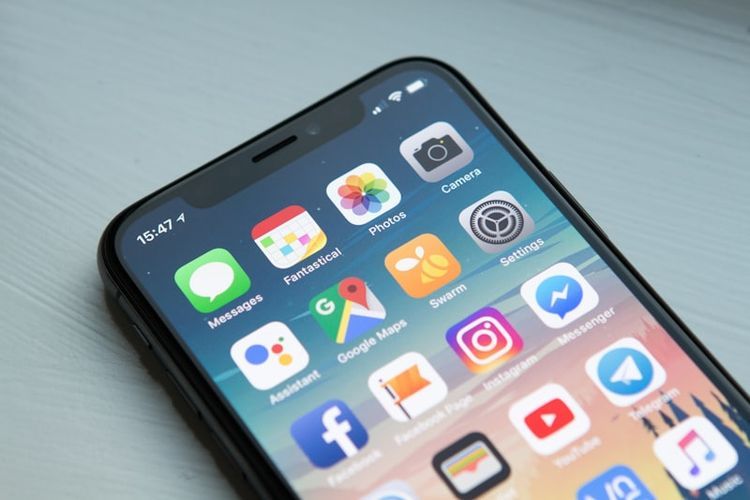
How to Install Phantom on Mobile?
iOS Installation
- Open the App Store
- Search for "Phantom"
- Find the official app developed by Phantom Technologies
- Tap "Get" and confirm the download
- Open the app after installation
- Create a new wallet or import an existing one
Android Installation
- Open Google Play Store
- Search for "Phantom"
- Select the official app (purple ghost icon)
- Tap "Install"
- Begin setup after installation
Phantom mobile supports biometric (fingerprint/face) unlock.
How to Use Phantom Wallet's Basic Features?
Receiving SOL and SPL Tokens
- Open Phantom
- Tap "Receive"
- Select the token you want to receive
- Copy the address or display the QR code
- Share the address with the sender
Sending SOL and SPL Tokens
- Tap "Send"
- Select the token to send
- Enter the recipient address and amount
- Confirm the transaction details and fees
- Tap confirm to send
Using the Swap Feature
- Tap the "Swap" icon at the bottom of Phantom
- Select the source and destination tokens
- Enter the amount
- Review the exchange rate and estimated output
- Confirm the transaction
Connecting to DApps
- Open a Solana DApp (such as Raydium, Jupiter, etc.) in your browser
- Click "Connect Wallet"
- Select "Phantom"
- Phantom displays a connection confirmation prompt
- Confirm the connection
Which Blockchains Does Phantom Support?
Phantom currently supports:
- Solana: SOL, all SPL tokens, Solana NFTs
- Ethereum: ETH, ERC-20 tokens, Ethereum NFTs
- Polygon: MATIC, Polygon tokens
- Base: Tokens on the Base chain
- Bitcoin: BTC transfers and Ordinals
You can manage assets across multiple chains in the same Phantom wallet, but different chains use different address formats (Solana addresses do not start with 0x).

What Are the Differences Between Phantom and MetaMask?
| Comparison | Phantom | MetaMask |
|---|---|---|
| Primary Ecosystem | Solana | Ethereum |
| Multi-chain Support | Solana+EVM+BTC | EVM only |
| NFT Management | Excellent, built-in display | Basic |
| Swap Feature | Built-in, smooth experience | Built-in |
| Interface Design | Modern and clean | Classic |
| DApp Ecosystem | Mainly Solana | Mainly Ethereum |
If you primarily operate within the Solana ecosystem, choose Phantom. If you primarily use the Ethereum ecosystem, choose MetaMask. Both can be used simultaneously.
Security Reminders
When installing and using Phantom wallet, make sure to follow these security practices:
- Download only from official sources: Chrome Web Store, App Store, Google Play, or phantom.app
- Verify authenticity: Confirm the developer is Phantom Technologies
- Back up the seed phrase securely: Write down the seed phrase on paper immediately after creating the wallet
- Never enter the seed phrase on a webpage: Phantom will never ask you to enter the seed phrase on a website
- Be cautious with DApp permissions: Malicious DApps and scam tokens exist on Solana as well
- Be aware of Solana-specific risks: Memecoin scams are frequent on Solana; do thorough research before investing
If you need to buy SOL on Binance first and then transfer to Phantom, make sure to select the Solana network when withdrawing.
Is Phantom Wallet Free?
Completely free. Phantom does not charge for installation or use. Swap transactions incur a service fee of approximately 0.85%, and on-chain transactions require SOL as gas fees (usually very low, around 0.000005 SOL).
Can I Import Phantom's Seed Phrase into MetaMask?
Phantom's EVM account seed phrase can be imported into MetaMask to recover Ethereum addresses. However, Solana addresses cannot be used in MetaMask because MetaMask does not support Solana.
Is Phantom Wallet Secure?
Phantom has undergone multiple professional security audits and is one of the most trusted wallets in the Solana ecosystem. However, security also depends on user behavior — safeguarding the seed phrase and being cautious with permissions are essential.
Can Phantom Store NFTs?
Yes, and Phantom's NFT display feature is excellent. It can display NFTs on Solana as well as on Ethereum and Polygon. Download the Binance App, and Apple users can refer to the iOS installation guide to view your NFTs under the "Collectibles" tab.
What Network Should I Choose When Withdrawing SOL to Phantom?
Select the Solana network. Phantom's Solana address format differs from EVM addresses — do not select ERC-20 or BEP-20 networks. Confirm that you have copied Phantom's Solana address before withdrawing.